
How to Free Up Storage on Android Without Deleting Important Photos
 as
as
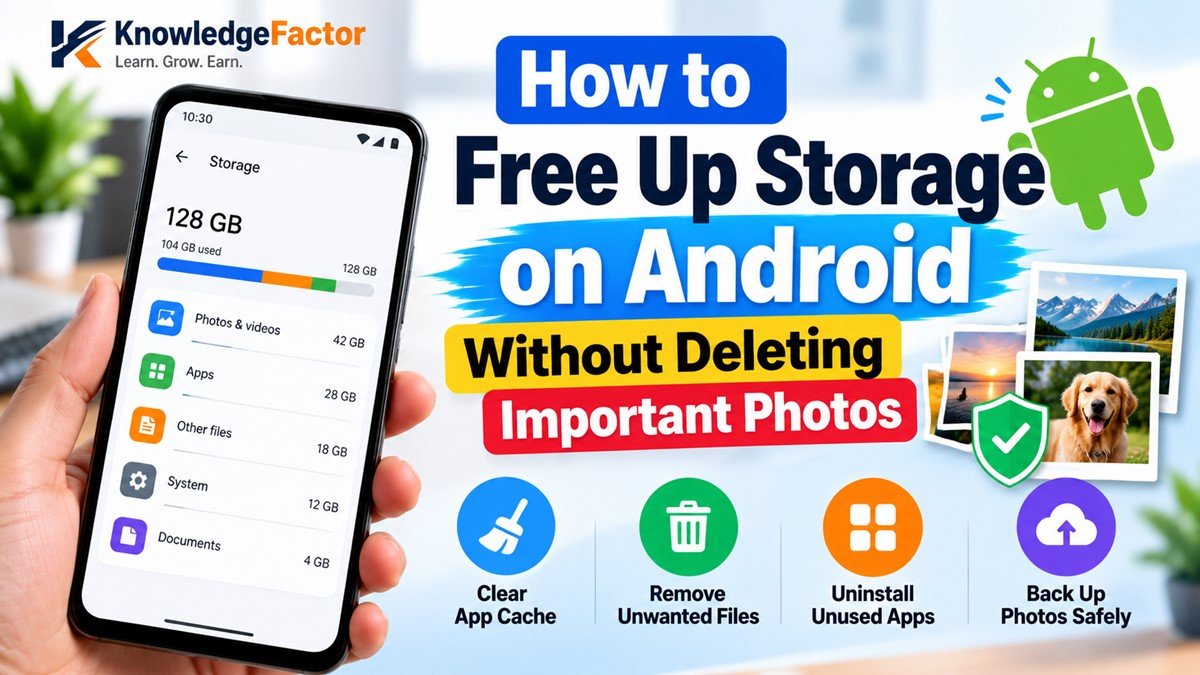
How to Free Up Storage on Android Without Deleting Important Photos
Is your Android phone showing a “Storage space running out” warning? Are apps taking longer to open, or are you unable to download new applications and updates? Low storage can make everyday phone use frustrating.
The good news is that you may be able to free up a significant amount of space without deleting your important photos, videos, contacts, or documents.
In this guide, you will learn how to free up storage on an Android phone safely, identify what is consuming space, remove unnecessary files, and prevent storage problems from returning.
Why Is Your Android Phone Storage Full?
Before deleting anything, it is helpful to understand what is using your phone's storage.
Common causes include:
Photos and videos: High-resolution images and long videos can consume considerable space.
App cache: Applications temporarily store files to load content faster.
Downloads: Old PDFs, documents, installation files, and other downloads may remain on your device.
Messaging apps: WhatsApp and other messaging applications can accumulate forwarded videos, images, voice notes, and documents.
Offline content: Downloaded music, movies, maps, and other media occupy local storage.
Unused applications: Apps you rarely open may still use storage for their files and data.
You can usually identify the largest storage categories in your phone's Settings app.
1. Check What Is Using Your Storage
Start by checking your phone's storage breakdown instead of deleting files randomly.
Follow these steps:
Open Settings on your Android phone.
Look for Storage, Device care, or a similarly named option.
Check how much space is used by apps, images, videos, documents, and system files.
Identify the categories consuming the most space.
The exact menu names vary between manufacturers such as Samsung, Xiaomi, Motorola, OnePlus, and Google Pixel.
Once you know which category is using the most space, you can choose the safest way to clean it.
2. Clear App Cache Safely
Applications may store temporary data called cache. Clearing this data can sometimes free up storage without removing your personal files.
To clear an app's cache:
Open Settings.
Go to Apps.
Select an application that is using a lot of storage.
Tap Storage or Storage and cache.
Select Clear cache, if available.
Repeat these steps for other apps where clearing cache is appropriate.
Important: Do not confuse “Clear cache” with “Clear storage” or “Clear data.” Clearing storage or data can remove downloaded content, settings, and locally stored information. Some apps may also require you to sign in again.
You may need to repeat cache cleanup occasionally because temporary files can build up again.
3. Use Google Files to Find Unnecessary Files
A file manager can help you locate large files, duplicate downloads, and items you no longer need.
If Google Files is available on your phone, open it and look for its cleanup suggestions.
You can review:
Large files
Old downloads
Unnecessary temporary files
Duplicate files, where identified
Unwanted media files
Review each suggestion before deleting anything. A file that looks unnecessary to an app may still be important to you.
If Google Files is not installed, use your phone's built-in file manager or another trusted file-management application.
4. Remove Unwanted WhatsApp Media
WhatsApp media is a common source of storage usage, particularly in active group chats.
Instead of deleting your entire WhatsApp folder, review the media files individually.
Steps may include:
Open WhatsApp.
Open Settings.
Select Storage and data.
Open Manage storage.
Review large files and media from individual chats.
Select only the items you no longer need and delete them.
Menu labels may differ slightly depending on your WhatsApp version.
Before removing important documents, family photos, or videos, save a copy somewhere safe. Deleting a media file from your phone may also affect your ability to view it inside the chat.
You can also reduce future storage usage by reviewing automatic media-download settings for mobile data and Wi-Fi.
5. Back Up Photos Before Removing Local Copies
Photos and videos can occupy a large portion of your device's storage. Backing them up can help you keep important memories while reducing local storage usage.
One option is Google Photos, if its backup feature is enabled and you have sufficient cloud storage.
Follow these steps:
Open Google Photos.
Check your backup status.
Wait for the backup to complete.
Confirm that important photos and videos are accessible in your backed-up library.
Use the app's Free up space feature, if available, to remove eligible local copies.
Be careful: Simply uploading photos is not the same as confirming that every file has been backed up successfully. Check your backup status before removing local copies.
Cloud storage may have limits, and additional storage can require a paid plan. You can also back up files to a computer or an external storage device.
6. Delete Old Downloads and Installation Files
Your Downloads folder may contain documents, images, PDFs, ZIP archives, and installation files you no longer need.
To review it:
Open your file manager.
Go to Downloads.
Sort files by size or date, if the option is available.
Open unfamiliar files before deciding whether to keep them.
Delete only files you recognize and no longer require.
Android application installation files, often ending in .apk, may be unnecessary after an app has been installed. However, keep them if you deliberately need them for a future installation.
Avoid deleting unfamiliar files from Android system folders, as this may affect applications or device functionality.
7. Uninstall Apps You Rarely Use
Unused apps can occupy space through the application itself and its stored data.
Review your installed applications and identify those you no longer need.
To uninstall an app:
Open Settings.
Select Apps.
Choose the application.
Tap Uninstall, if available.
You can also uninstall many apps by pressing and holding their icons and selecting the uninstall option.
Before uninstalling an application, check whether it stores important information locally. Some apps may not automatically restore their data when reinstalled.
Avoid removing unfamiliar system applications or essential services.
8. Remove Offline Downloads From Streaming Apps
Streaming and navigation apps often allow you to save content for offline use.
Examples include downloaded music, videos, podcasts, and offline maps.
Open the relevant application and review its downloaded content. Remove items you have already watched, listened to, or no longer need offline.
This can be especially useful if you frequently download large videos or playlists.
Remember that deleting an offline download usually removes the local copy, not your online subscription or access rights.
9. Move Large Files to a Computer or External Storage
If your phone regularly runs out of space, transferring large files to another storage location can be a practical long-term solution.
You can use:
A USB cable to transfer files to a computer
A compatible USB drive with the appropriate connector
A microSD card, if your phone supports one
A trusted cloud storage service
After transferring files, open the destination and verify that the files are accessible before deleting the originals from your phone.
For important documents and family photographs, maintaining a second backup can provide additional protection against accidental loss.
10. Prevent Your Android Storage From Filling Up Again
Once you have freed up space, a few simple habits can help you maintain it.
Review downloads regularly
Remove unnecessary files from your Downloads folder every few weeks.
Manage automatic media downloads
Adjust messaging-app settings so that unnecessary photos and videos are not downloaded automatically.
Keep an eye on large applications
Check your storage settings periodically to identify apps whose data is growing quickly.
Avoid unnecessary cleaner apps
You do not generally need several third-party cleaning applications. Some display excessive advertisements or request permissions that are not necessary for basic cleanup. Prefer built-in storage tools and trusted file managers.
Keep some free storage available
Try to avoid keeping your phone's storage completely full. Leaving some space available helps accommodate downloads, app updates, temporary files, and normal device operations. There is no single free-space percentage that is ideal for every Android phone.
What Should You Never Delete While Cleaning Android Storage?
When freeing up space, avoid deleting files without understanding what they contain.
Be especially careful with:
Important photographs and videos that are not backed up
Work documents and personal PDFs
Messaging-app backups
Files belonging to unfamiliar applications
Android system files
App data that cannot easily be restored
Also, remember that clearing an application's cache is different from clearing its data. Choose the correct option before confirming an action.
Frequently Asked Questions (FAQs)
1. How can I free up Android storage without deleting photos?
Start by checking your storage breakdown. Clear appropriate app caches, remove unnecessary downloads, review WhatsApp media, uninstall unused apps, and delete offline content you no longer need. You can also back up photos and videos before removing eligible local copies.
2. Does clearing cache delete personal photos?
Clearing an individual app's cache generally removes temporary files rather than personal photographs stored in your gallery. However, the effect depends on the application and the option you select. Do not select Clear storage or Clear data unless you understand the consequences.
3. Why is my phone storage full when I have deleted files?
Deleted items may remain in a Trash or Recently Deleted folder. Some applications also retain cached data, downloads, or offline content. Check these locations and review the storage breakdown again. The displayed storage figures may take some time to refresh.
4. Can I increase Android internal storage?
You generally cannot increase the physical internal storage capacity of a phone through software. Depending on the device, you may be able to use a microSD card for supported files, transfer content to a computer, or use cloud storage.
5. Is it safe to use Android cleaner apps?
Some file-management and cleanup apps can be useful, but installing a cleaner app is not always necessary. Start with built-in storage tools and trusted applications. Avoid tools that make unrealistic performance claims or request unnecessary permissions.
6. Will freeing up storage make my phone faster?
It may help when low storage is contributing to problems with downloads, updates, or app operations. However, phone speed also depends on processor performance, available memory, battery condition, software, and other factors. Cleaning storage does not guarantee a noticeable speed improvement on every device.
Final Thoughts
Running out of Android storage does not always mean you need to delete your important photos or personal documents.
Start by checking which files and applications are consuming the most space. Then clear appropriate caches, review downloads, manage messaging-app media, remove unused applications, and back up important files before removing local copies.
With a little regular maintenance, you can keep your Android phone's storage more organized and reduce the chances of seeing storage warnings again.
Recommended next step: Check your phone's storage settings first, then work through the cleanup methods that are most relevant to your device.


1 Comment