
Android Passkeys Explained: How to Sign In Without a Password and Is It Safe?
 as
as
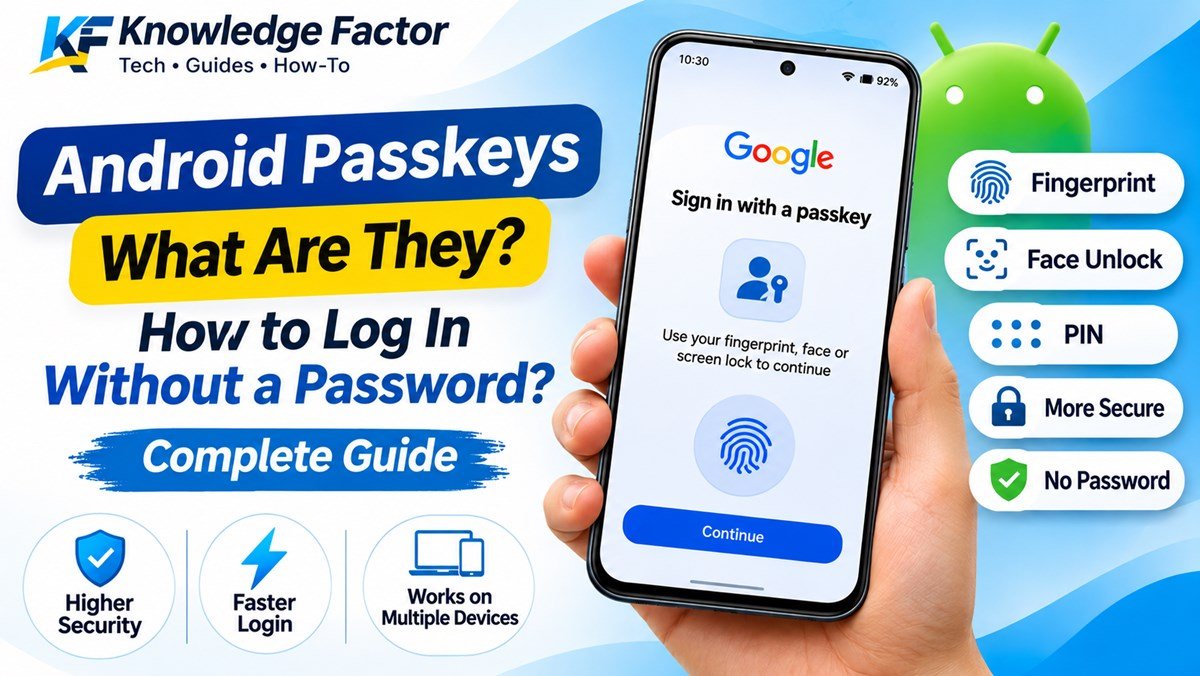
Passwords have been used for years to protect online accounts. Whether you are signing in to Gmail, shopping online, using social media, or accessing banking services, you usually need to remember a password.
However, passwords can be forgotten, reused across multiple websites, or stolen through phishing attacks.
To make account sign-in easier and safer, a technology called Passkeys is becoming an alternative to traditional passwords.
With Android passkeys, you can sign in to supported apps and websites using your fingerprint, face recognition, PIN, or device screen lock instead of manually entering a password.
But what exactly are passkeys? How do they work? Can you use them with your Google Account? And what happens if you lose your phone?
Let's understand everything step by step.
What Are Passkeys?
A passkey is a digital sign-in credential that allows you to access an online account without typing a traditional password.
Instead of remembering a combination of letters, numbers, and special characters, you verify your identity using your device's screen lock.
For example, when you sign in to a supported website using a passkey, your Android phone may ask you to:
Scan your fingerprint.
Verify your face.
Enter your phone's PIN.
Use another supported screen-lock method.
Once your identity is verified, the website or application can confirm that you are the authorised user.
Passkeys are based on public-key cryptography and are designed to provide stronger protection against common phishing attacks.
How Do Android Passkeys Work?
Passkeys work differently from traditional passwords.
When you create a passkey for a supported website or app, your device generates a cryptographic key pair:
Private Key: The private key remains protected by your device or passkey manager and is used to prove your identity.
Public Key: The corresponding public key is registered with the website or service.
When you sign in, the service sends a cryptographic challenge. Your device uses the private key to respond after you verify your identity.
The service checks the response using the registered public key.
This means you do not need to send a traditional password to the website during passkey authentication.
Your fingerprint or face data is used locally to unlock the credential. Google says this biometric information stays on your device and is not shared with Google during passkey sign-in.
How to Create a Google Passkey on Android
If you want to use a passkey for your Google Account, you can create one through Google's official account settings.
Follow these steps:
Step 1: Open Google Passkeys Settings
Open the official Google Passkeys page:
Make sure you are signed in to the correct Google Account.
Step 2: Select Create a Passkey
Tap the Create a passkey option.
Google may ask you to verify your identity before continuing.
Step 3: Verify Your Identity
Your Android phone will ask you to unlock the device.
Depending on your phone, you may be able to use:
Fingerprint
Face recognition
PIN
Screen lock
Step 4: Complete the Setup
Follow the instructions displayed on your screen.
Once the passkey has been created successfully, you can use it to sign in to your Google Account on supported devices and browsers.
Important: Only create passkeys on devices you personally own and control. Anyone who can unlock your device may be able to use its passkey to access your account.
How to Sign In Using a Passkey
After creating a passkey, signing in becomes much easier.
Open a website or app that supports passkeys.
Select the sign-in option.
Choose your account if prompted.
Select the passkey option.
Verify your identity using your fingerprint, face recognition, or PIN.
After successful verification, you will be signed in without manually entering your password.
Remember that not every website or application supports passkeys yet.
Are Passkeys More Secure Than Passwords?
In many situations, passkeys provide stronger protection than traditional passwords.
Here are some important advantages:
1. Better Protection Against Phishing
One of the biggest advantages of passkeys is their resistance to phishing.
A traditional password can be entered on a fake website by mistake. Passkeys are designed to work with the website or service for which they were created.
This makes it harder for attackers to trick users into handing over their sign-in credentials.
2. No Need to Remember Complex Passwords
You do not need to remember a different password for every supported service.
Your device or password manager can securely manage your passkeys.
3. Faster Login
Instead of typing a long password, you can verify your identity with a fingerprint, face scan, or PIN.
4. Reduced Risk From Password Reuse
Many people use the same password on multiple websites. If one service suffers a data breach, reused passwords can put other accounts at risk.
Passkeys use a different authentication approach and do not rely on users remembering and reusing passwords.
What Happens If You Lose Your Android Phone?
This is an important question before switching to passkeys.
If your phone is lost or stolen, you should take action to protect your Google Account.
You can:
Open your Google Account from another trusted device.
Visit the Security section.
Review the devices connected to your account.
Sign out of the lost device.
Review your passkeys and remove credentials associated with a device you no longer control.
Use Google's account recovery process if necessary.
If your passkeys are synced through a supported password manager, you may be able to access them on another device after signing in and completing the required verification.
It is also a good idea to keep your recovery phone number and email address up to date.
Can You Use Android Passkeys on a Computer?
Yes. You can use a passkey stored on your Android phone to sign in to supported websites on a computer.
For example, when signing in to Google on a compatible computer:
Enter your Google Account email address.
Choose the passkey sign-in option if available.
Select the option to use another device, if prompted.
Scan the displayed QR code using your phone.
Keep Bluetooth enabled when required.
Verify your identity on your phone.
After successful verification, you can access your account on the computer.
The exact steps may vary depending on the browser, operating system, and passkey provider.
What Is Google Password Manager?
Google Password Manager is a service that helps users save and manage passwords and passkeys.
On supported Android devices, it can securely store and sync passkeys across compatible devices signed in to the same Google Account.
Android users can also select compatible third-party password managers on supported versions of Android.
To check your password manager settings:
Open your Android phone's Settings.
Search for Passwords, passkeys & accounts.
Open the relevant settings.
Select your preferred password manager.
Check that it is enabled for passkey sign-in.
The names and locations of these settings may differ between Android brands.
Passkeys vs Passwords: What's the Difference?
| Feature | Traditional Passwords | Passkeys |
|---|---|---|
| Sign-in method | Type a password | Fingerprint, face, PIN or screen lock |
| Memory required | Yes | No manual password required |
| Phishing protection | Can be vulnerable | Designed to resist phishing |
| Password reuse | Common risk | No password reuse |
| Storage | Password manager or user memory | Device or compatible passkey manager |
| Website support | Widely supported | Only supported services |
Frequently Asked Questions (FAQs)
1. Are Android passkeys free?
Yes. Creating and using passkeys through supported Android features and Google services does not require a separate passkey subscription.
2. Can I use passkeys without a fingerprint sensor?
Yes. Depending on your device and its settings, you may be able to use a PIN, face recognition, or another supported screen-lock method.
3. Do passkeys completely replace passwords?
No. Passkeys are an alternative sign-in method, but passwords may still be available as a fallback depending on the service and account settings.
4. Can I use the same passkey on multiple devices?
It depends on your passkey provider and sync settings. Google Password Manager can sync supported passkeys across compatible devices signed in to the same Google Account.
5. Does Google receive my fingerprint when I use a passkey?
No. Google states that biometric information used for passkey verification stays on your device and is not shared with Google.
6. Does every Android app support passkeys?
No. An app or website must implement passkey support before you can use this sign-in method.
Final Thoughts
Passkeys represent an important change in how people access online accounts. They reduce dependence on traditional passwords and make sign-in easier through familiar device authentication methods.
For Android users, creating a Google passkey is a simple way to explore passwordless sign-in.
However, passkeys should be used carefully. Protect your phone with a strong screen lock, avoid creating passkeys on shared devices, and keep your account recovery options updated.
As more websites and applications adopt this technology, passkeys could become an increasingly common way to access online services securely.
About Knowledge Factor: Knowledge Factor shares practical technology guides, digital tips, tutorials, and useful information to help readers understand and use technology more effectively.
Comments
Abhi koi comment nahi hai. Pehle aap likhiye!