
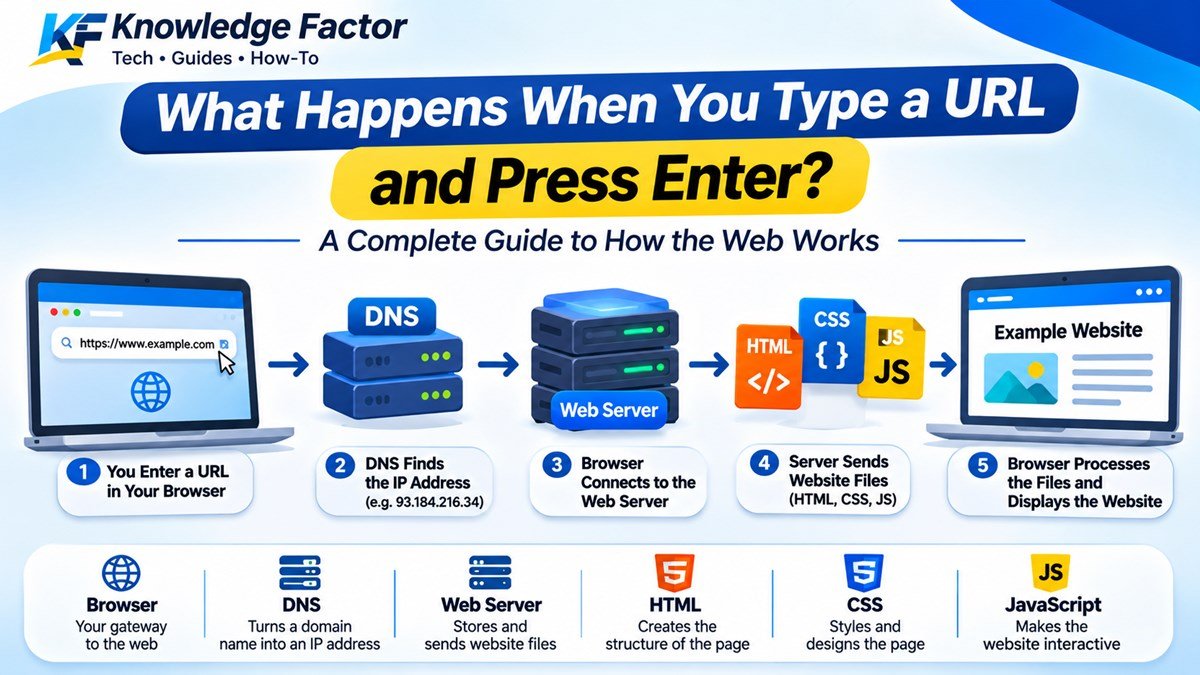
What Happens When You Type a URL and Press Enter? A Complete Guide to How the Web Works
 as
as
Introduction
Have you ever wondered what actually happens when you open Google, YouTube, Facebook or any other website?
You simply type a website address into your browser, press Enter, and within a few seconds, the website appears on your screen.
It looks like a simple action, but several things happen behind the scenes.
Your browser communicates with different systems, finds the correct server, sends a request, receives website files and finally displays the page.
In fact, this entire process involves several important programming and networking technologies, including:
Browser
DNS (Domain Name System)
IP Address
Web Server
HTTP and HTTPS
HTML
CSS
JavaScript
In this guide, we will understand each step using simple examples.
1. You Enter a Website URL in Your Browser
Let's say you want to visit:
https://www.example.com
You open Google Chrome, type this address into the address bar and press Enter.
Your browser now needs to understand where this website is located and how to communicate with it.
A URL generally contains several parts:
https://www.example.com/blog/article
Let's break it down:
| Part | Meaning |
|---|---|
| https | Communication protocol |
| www | Subdomain |
| example.com | Domain name |
| /blog/article | Page path |
Simple Example:
Think of a URL like a home address.
Protocol tells you how to communicate.
Domain name identifies the destination.
Page path identifies the particular page you want to visit.
But there is one problem: computers do not locate websites using human-friendly domain names. They communicate using IP addresses.
That's where DNS comes in.
2. DNS Finds the Website's IP Address
DNS stands for Domain Name System.
Its main job is to translate domain names into IP addresses.
For example, humans can easily remember:
google.com
But computers need an IP address to communicate with the correct server.
You can think of DNS as the phonebook of the internet.
Imagine that you want to call your friend. You search for their name in your contacts and find their phone number.
DNS works in a similar way.
You provide a domain name, and DNS helps your browser find the corresponding IP address.
How Does DNS Work?
When your browser needs to find a website, it may follow these steps:
Check whether the IP address is already available in the browser cache.
Check the operating system's DNS cache.
Ask a configured DNS resolver if the address is not already cached.
The resolver may contact other DNS servers to find the required record.
The IP address is returned to your browser.
For example, a DNS lookup might return an IPv4 address such as:
93.184.216.34
This is an illustrative example, not a fixed address for every website.
Important: DNS does not download the website. It only helps your browser discover where to connect.
3. Your Browser Connects to the Web Server
After finding the IP address, your browser needs to establish a connection with the website's server.
A web server is a computer or software system that stores or serves website resources.
These resources may include:
HTML files
CSS files
JavaScript files
Images
Videos
Fonts
Other website data
For an HTTPS website, the browser typically establishes a TCP connection and performs a TLS handshake. HTTP/3 can instead use QUIC over UDP.
What Is a Server?
Think of a restaurant.
You are the customer, and the restaurant is the server.
You place an order, the restaurant prepares it, and then the food is delivered to your table.
A website server works similarly:
Browser = Customer
HTTP Request = Order
Web Server = Restaurant
HTTP Response = Prepared Order
The browser requests a resource, and the server sends back the appropriate response.
4. HTTPS Protects Communication
You may have noticed that many websites start with:
https://
HTTPS stands for Hypertext Transfer Protocol Secure.
It protects communication between your browser and the website using encryption through TLS.
This helps protect information from being easily read or modified while travelling across the network.
For example, when you log in to a website, HTTPS helps protect the login information during transmission.
HTTP vs HTTPS
| Feature | HTTP | HTTPS |
|---|---|---|
| Encryption | No built-in TLS encryption | Uses TLS |
| Security | Less secure for sensitive data | Protects data in transit |
| Website URL | http:// | https:// |
| Certificate | Not required for HTTP | Uses a TLS certificate |
HTTPS does not automatically mean that a website is trustworthy. It protects the connection, not the honesty of the website itself.
5. Browser Sends an HTTP Request
Once the connection is ready, your browser sends an HTTP request to the server.
HTTP stands for Hypertext Transfer Protocol.
It is a communication protocol used to transfer resources between clients and servers.
For example, when you open a webpage, your browser may send a request similar to this:
GET /blog/article HTTP/1.1
Host: www.example.com
Accept: text/html
Let's understand it:
GET: Requests a resource from the server.
/blog/article: The requested page.
Host: Identifies the website.
Accept: Indicates the type of content the browser can accept.
There are different HTTP methods, including:
| Method | Purpose |
|---|---|
| GET | Retrieve data |
| POST | Submit data |
| PUT | Replace a resource |
| PATCH | Partially update a resource |
| DELETE | Delete a resource |
For example, when you submit a registration form, the browser may send a POST request containing the submitted information.
6. Web Server Processes the Request
Now the request reaches the website's server.
The server checks what the browser is asking for and decides how to respond.
There are two common situations.
Situation A: Static Website
A static website may contain ready-made HTML, CSS, JavaScript and image files.
The server can simply return the requested files.
For example:
index.html
style.css
script.js
logo.png
Situation B: Dynamic Website
A dynamic website may need to execute backend code and communicate with a database.
For example, consider a PHP-based website.
When someone opens an article URL, the server might:
Receive the requested URL.
Identify the article slug.
Execute PHP code.
Query the MySQL database.
Retrieve the article title and content.
Generate HTML.
Send the HTML response to the browser.
A simplified PHP example:
<?php

$article = "How Websites Work";

echo "<h1>" . htmlspecialchars($article) . "</h1>";

?>
The PHP code executes on the server.
The browser does not normally receive the original PHP source code. It receives the generated HTML response.
This is one of the main differences between frontend and backend programming.
7. Server Sends an HTTP Response
After processing the request, the server sends an HTTP response to the browser.
A response contains a status code, headers and sometimes a response body.
For example:
HTTP/1.1 200 OK
Content-Type: text/html
The status code tells the browser what happened.
Important HTTP Status Codes
| Status Code | Meaning |
|---|---|
| 200 | OK – Request successful |
| 301 | Permanently moved |
| 302 | Temporary redirect |
| 400 | Bad Request |
| 401 | Unauthorized |
| 403 | Forbidden |
| 404 | Page Not Found |
| 500 | Internal Server Error |
| 503 | Service Unavailable |
For example, if you open a page that does not exist, the server may return a 404 status code.
If the website works correctly, the server may return 200 OK.
8. Browser Reads HTML and Builds the Page
Now comes an interesting part.
The browser receives the HTML document and starts processing it.
HTML stands for HyperText Markup Language.
It describes the structure and content of a webpage.
For example:
<!DOCTYPE html>
<html>
<head>
    <title>My First Website</title>
</head>
<body>

    <h1>Welcome to My Website</h1>

    <p>This is my first webpage.</p>

</body>
</html>
The browser reads this document and builds a structure called the DOM (Document Object Model).
Think of the DOM as a tree representing the elements of a webpage.
For example:
Document
   |
   HTML
   |
   BODY
   |
   |--- H1
   |
   |--- P
The browser uses this structure to understand what elements should appear on the page.
9. CSS Makes the Website Look Beautiful
HTML creates the structure, but CSS controls how that structure looks.
CSS stands for Cascading Style Sheets.
It controls:
Colours
Fonts
Text sizes
Spacing
Layout
Borders
Backgrounds
Responsive design
Example:
body {
    background-color: #f5f7fb;
    font-family: Arial, sans-serif;
}

h1 {
    color: #0756b8;
    font-size: 32px;
}

p {
    color: #333;
    line-height: 1.6;
}
Without CSS, a webpage may look very basic.
With CSS, developers can create modern layouts, navigation bars, cards, buttons and responsive designs.
10. JavaScript Makes the Website Interactive
Now imagine a website with buttons, search boxes, dropdown menus and interactive forms.
How do these features work?
JavaScript makes webpages interactive.
It can:
Respond to button clicks.
Validate form inputs.
Display dropdown menus.
Update content without reloading the entire page.
Fetch data from APIs.
Create interactive components.
Example:
<button onclick="showMessage()">
    Click Me
</button>

<script>
function showMessage() {
    alert("Welcome to Knowledge Factor!");
}
</script>
When a user clicks the button, JavaScript executes the function and displays a message.
This is why HTML, CSS and JavaScript are often called the three core technologies of frontend web development.
11. Browser Displays the Final Website
After processing the HTML, CSS and JavaScript, the browser performs layout calculations and paints the visible elements.
It also downloads other resources when required, such as:
Images
Fonts
Stylesheets
JavaScript files
The browser may execute JavaScript that requests additional data from the server.
Finally, the webpage becomes visible and interactive.
That is how a simple action like pressing Enter can involve so many technologies.
Complete Process: What Happens When You Open a Website?
Let's understand the complete journey in one simple flow:
User Enters Website URL
          |
          v
Browser Reads the URL
          |
          v
DNS Finds the IP Address
          |
          v
Browser Connects to Server
          |
          v
HTTPS/TLS Connection Established
          |
          v
Browser Sends HTTP Request
          |
          v
Server Processes the Request
          |
          v
Server Sends HTTP Response
          |
          v
Browser Receives HTML
          |
          v
HTML + CSS + JavaScript Processing
          |
          v
Website Appears on Screen
What Is the Difference Between Frontend and Backend?
Now that you understand how a website works, let's understand two important programming terms.
Frontend Development
Frontend is the part of a website that users can see and interact with.
It includes:
HTML
CSS
JavaScript
React and other frontend frameworks
For example, a website's navigation bar, homepage design, article layout and search box are part of its frontend.
Backend Development
Backend is the server-side part of a website.
It handles tasks such as:
User authentication
Database operations
Processing forms
Managing website content
Handling API requests
Business logic
Common backend technologies include:
PHP
Python
Java
Node.js
C#
For example, when you log in to a website, the backend checks your credentials and determines whether you should be allowed to access your account.
Frequently Asked Questions (FAQs)
1. What happens when you type a URL and press Enter?
The browser reads the URL, finds the server's IP address using DNS, establishes a connection, sends an HTTP request and receives a response. It then processes the website resources and displays the page.
2. What is DNS in simple words?
DNS is like an internet phonebook. It helps translate domain names into IP addresses so browsers can locate the correct servers.
3. What is the difference between a browser and a web server?
A browser is software used to access and display websites. A web server handles requests and delivers website resources to browsers.
4. Does HTML run on the server or browser?
HTML is generally interpreted and rendered by the browser. However, the server may generate HTML dynamically using backend technologies such as PHP.
5. Why do websites use JavaScript?
JavaScript adds interactive functionality to websites, such as button actions, form validation, dynamic content and API communication.
6. What happens if a website server is down?
The browser may show an error because it cannot receive the required response from the server. Depending on the problem, you might see a connection error or a 5xx HTTP status code.
7. Can a website work without a backend?
Yes. A simple static website can work without a custom backend. It can serve HTML, CSS, JavaScript and image files directly.
Conclusion
A website may appear simple to a visitor, but several technologies work together behind the scenes to make it function.
When you type a URL and press Enter, your browser uses DNS to locate the server, establishes a connection, sends an HTTP request and receives a response.
After that, HTML builds the structure, CSS styles the page and JavaScript adds interactive features.
Understanding this process is an important first step for anyone who wants to learn web development or programming.
The next time you open a website, remember that your browser is doing much more than simply displaying a page!
Knowledge Factor — Making Technology Easier to Understand.
Comments
Abhi koi comment nahi hai. Pehle aap likhiye!