
How to Free Up Storage on Android Without Deleting Important Photos
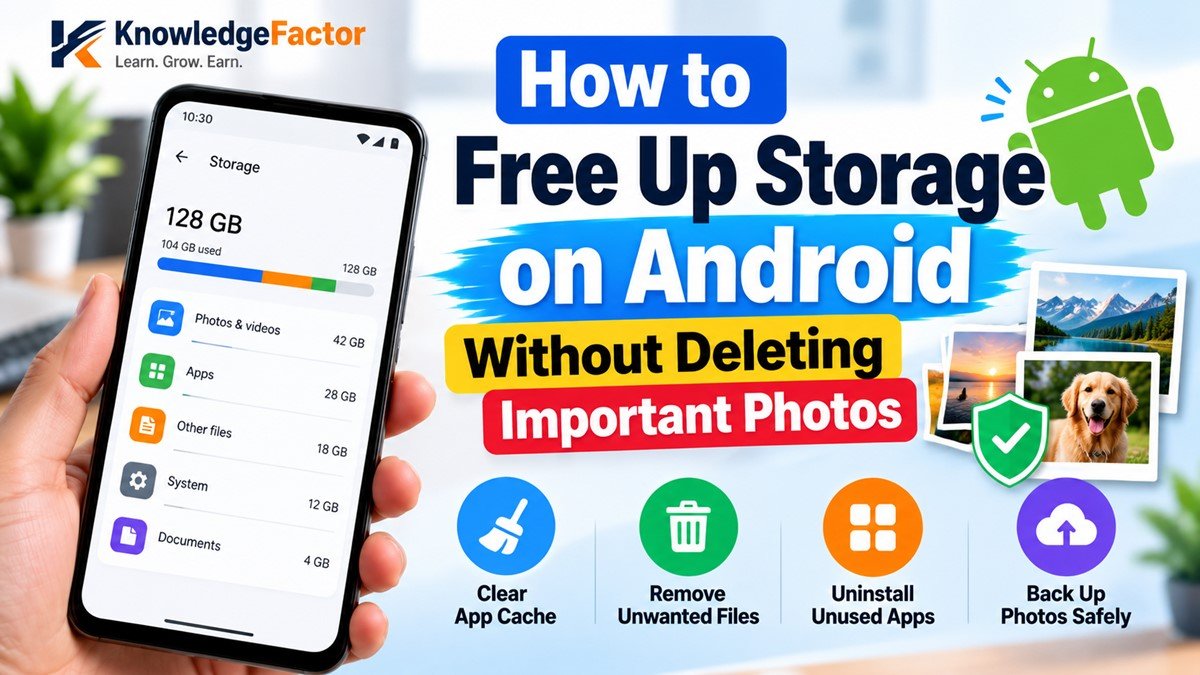
Is your Android phone showing a “Storage space running out” warning? Are you unable to download apps or updates? You may be able to free up space without deleting important photos, videos, contacts, or documents. This guide explains practical ways to review storage and remove unnecessary files safely.
Why Is Your Android Phone Storage Full?
Common causes include high-resolution photos and videos, app cache, old downloads, messaging-app media, offline music or movies, and applications you rarely use. Identify the largest category before deleting anything.
| Storage item | What it contains | What to do |
|---|---|---|
| Photos and videos | Camera photos, recordings, downloaded media | Back up important items before removing local copies |
| App cache | Temporary files stored by apps | Use “Clear cache” where available |
| Downloads | PDFs, documents, ZIP files and installers | Delete only files you recognize and no longer need |
| Messaging apps | Shared photos, videos, voice notes and documents | Review large files inside the app |
| Offline content | Downloaded music, videos and maps | Remove downloads you no longer need |
| Unused apps | Apps and their stored data | Uninstall apps after checking their data |
1. Check What Is Using Your Storage
- Open Settings on your Android phone.
- Look for Storage, Device care, or a similarly named option.
- Review space used by apps, images, videos, documents, and system files.
- Start with the categories consuming the most space.
2. Clear App Cache Safely
Apps may store temporary data called cache. Clearing an app’s cache can sometimes free up space without removing personal files.
- Open Settings → Apps.
- Select an app using a lot of storage.
- Tap Storage or Storage and cache.
- Select Clear cache, if available.
3. Use a Trusted File Manager
A file manager can help find large files, old downloads, and unnecessary items. If Google Files is available, review its cleanup suggestions. Check each suggestion before deleting it; a file that appears unnecessary may still be important to you.
- Large files you recognize and no longer need
- Old downloads and duplicates identified by the app
- Unwanted temporary files
- Media already backed up elsewhere
4. Remove Unwanted WhatsApp Media
- Open WhatsApp and go to Settings.
- Choose Storage and data.
- Open Manage storage, if available.
- Review large files and media from individual chats.
- Delete only items you no longer need.
Review automatic media-download settings to prevent unnecessary photos and videos from downloading in the future.
5. Back Up Photos Before Removing Local Copies
Backing up photos and videos can help preserve memories while reducing local storage use.
- Open Google Photos, if you use it.
- Check the backup status and wait for it to finish.
- Confirm important photos and videos are accessible in your backed-up library.
- Use the app’s Free up space feature, if available, to remove eligible local copies.
You can also transfer files to a computer or external storage. Verify that the files open at the destination before deleting originals.
6. Delete Old Downloads and Installation Files
- Open your file manager and go to Downloads.
- Sort files by size or date if possible.
- Open unfamiliar files before deciding whether to keep them.
- Delete only files you recognize and no longer require.
Installation files ending in .apk may be unnecessary after an app is installed, but keep them if you need them for future installs. Avoid deleting unfamiliar Android system files.
7. Uninstall Apps You Rarely Use
- Open Settings → Apps.
- Select an app you want to remove.
- Tap Uninstall, if available.
- Check whether it stores important local information first.
8. Remove Offline Downloads From Streaming Apps
Streaming and navigation apps may save music, videos, podcasts, or maps for offline use. Open the relevant app and remove downloads you no longer need. Deleting an offline download usually removes the local copy, not your subscription or online access rights.
9. Move Large Files to a Computer or External Storage
- Transfer files to a computer using a USB cable.
- Use a compatible USB drive or microSD card if your device supports it.
- Use a trusted cloud storage service while keeping its storage limits in mind.
After transferring files, verify that they open correctly at the destination before deleting the originals.
10. Prevent Android Storage From Filling Up Again
- Review downloads and remove unnecessary files regularly.
- Adjust automatic media downloads in messaging apps.
- Check which apps use the most storage.
- Use built-in storage tools before installing extra cleaner apps.
- Keep important files backed up in a location you can access.
- Leave some space available for downloads, updates, and temporary files.
There is no single free-space percentage that is ideal for every phone. Avoid keeping storage completely full and review it periodically.
What Should You Never Delete While Cleaning Android Storage?
- Important photos and videos that are not backed up
- Work documents and personal PDFs
- Messaging-app backups
- Files belonging to unfamiliar applications
- Android system files
- App data that cannot easily be restored
Frequently Asked Questions (FAQs)
1. How can I free up Android storage without deleting photos?
Check storage usage, clear appropriate app caches, remove unnecessary downloads, review WhatsApp media, uninstall unused apps, and remove offline content. You can also back up photos before removing eligible local copies.
2. Does clearing cache delete personal photos?
Clearing an individual app’s cache generally removes temporary files rather than photos stored in your gallery. The effect depends on the app and option selected. Avoid “Clear storage” or “Clear data” unless you understand the consequences.
3. Why is storage full after deleting files?
Deleted items may remain in a Trash or Recently Deleted folder. Apps may also retain cache, downloads, or offline content. Review these locations and check storage again.
4. Can I increase Android internal storage?
You generally cannot increase physical internal storage through software. Depending on your device, you may use a microSD card for supported files, transfer files to a computer, or use cloud storage.
5. Are Android cleaner apps safe?
Some file-management tools can help, but a separate cleaner app is not always necessary. Start with built-in tools and trusted apps. Avoid tools making unrealistic claims or requesting unnecessary permissions.
6. Will freeing storage make my phone faster?
It may help if low storage is contributing to problems with downloads, updates, or app operations. Speed also depends on the processor, memory, battery condition, software, and other factors, so improvement is not guaranteed.
Final Thoughts
Running out of Android storage does not always mean deleting important photos or documents. Identify what is taking up space, clear appropriate caches, review downloads, manage messaging media, remove unused apps, and back up important files before removing local copies.
Start here: Open your phone’s Storage settings and review the largest categories before making changes.


1 Comment